

Upload a folder
Pick a folder on your computer and Thingport uploads everything in it, recreating its folder tree. This is the easiest way to bring in an organized library from the browser. Your originals stay where they are.
Step by step
Section titled “Step by step”-
Click Add at the top right, then Upload folder.
-
Pick the folder. You pick one folder at a time; everything inside it, however deep, comes along. Your browser may ask you to confirm uploading that many files. That’s the browser checking, not Thingport.
-
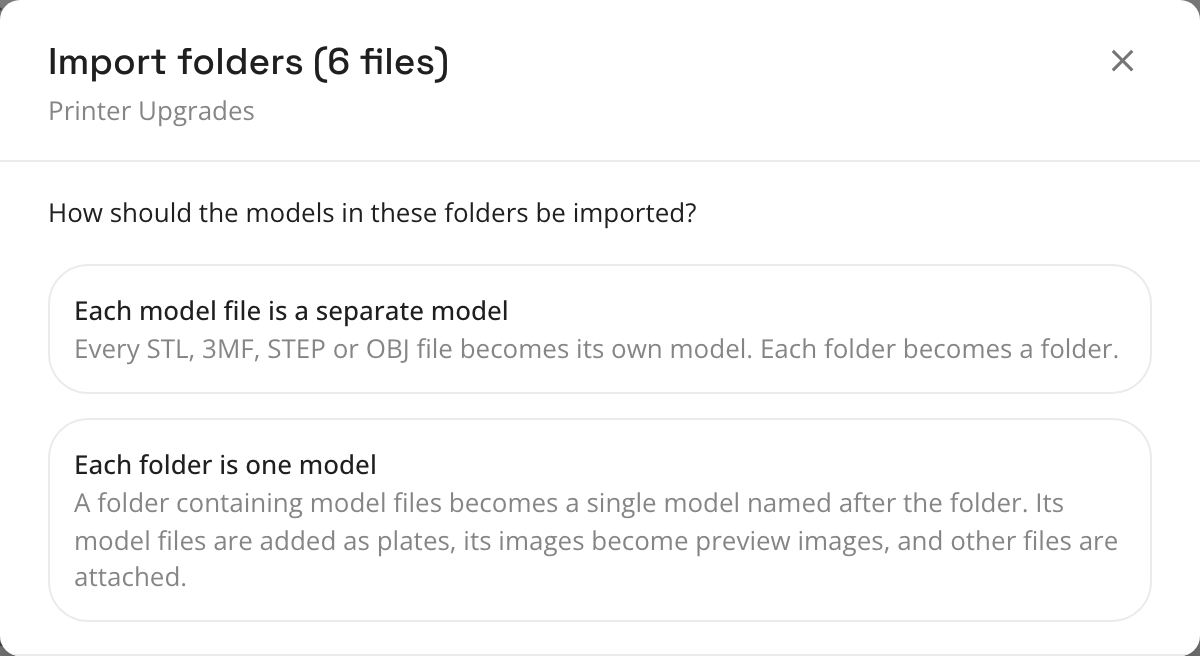
If the folder contains model files (STL, 3MF, STEP, OBJ or glTF), Thingport asks how to import them:
-
Keep the tab open until you see Uploaded N models. Files upload one after another, so a big tree takes a while.
The folder you picked becomes a folder in Thingport too. To put the whole tree inside an existing folder, open that folder on the Models page before you upload.
Hidden files and system clutter (anything starting with a dot, .DS_Store, Thumbs.db, desktop.ini) are skipped.
Each model file is a separate model
Section titled “Each model file is a separate model”Every model file becomes its own model, named after the file, and every directory becomes a folder. Images become models of their own too. Text files, PDFs and other files that can’t be a model on their own are skipped.
Miniatures/ Folders: Miniatures › Dragons, Miniatures › Knights Dragons/red dragon.stl → Models: "red dragon", "green dragon" in Dragons Dragons/green dragon.stl "knight" in Knights Knights/knight.stlEach folder is one model
Section titled “Each folder is one model”Each folder that directly contains model files becomes one model, named after the folder:
- its STL, 3MF, STEP, OBJ and glTF files become the model’s files, in name order; a
.gltfis packed with the.binand textures it uses into one.glb, wherever they sit below it, so atexturesfolder doesn’t become models or photos of its own - its images (PNG, JPG, WebP or BMP, up to 8 MB) become the model’s photos, and the first one becomes the thumbnail if the model files don’t carry one
- everything else, like a PDF manual, a readme or slicer settings, is attached to the model
The folders above it become folders in Thingport.
Printer Upgrades/ Folder: Printer Upgrades Cable Chain/chain link.stl → Models: "Cable Chain" with 2 files and 1 photo Cable Chain/end mount.stl "Fan Duct" with 1 file and print settings.txt attached Cable Chain/photo.png Fan Duct/fan duct.3mf Fan Duct/print settings.txtA few details worth knowing:
- If model files sit directly in the folder you picked, that folder itself becomes the model.
- Files in a folder without any model files are uploaded one per file, as in the other mode.
- This is the right choice for downloads from model sites that you unpacked into a folder each. Every download ends up as one tidy model.
ZIPs inside the folder
Section titled “ZIPs inside the folder”ZIPs aren’t counted with the folder’s other files. After the folder upload, Thingport asks about each ZIP it found, just like uploading a ZIP. If you unzip it, its contents go into the folder where the ZIP was.
Uploading the same folder again
Section titled “Uploading the same folder again”Thingport reuses the folders it already made for that tree, so you won’t get a second Printer Upgrades folder. The models are added again though, with ” (2)” after their names. To add new models to an imported tree, upload just the new subfolder, with the matching folder open on the Models page.
Big libraries
Section titled “Big libraries”Folder upload runs in your browser and needs the tab open until it finishes. For tens of thousands of files, or a library that already lives on your server or NAS, use the consume folder instead. It does the same job on the server, with no browser involved.
Back to the overview of ways to bring in your library.
Feedback
Section titled “Feedback”Something unclear, wrong or missing on this page? Say so here, or react. It’s kept in GitHub Discussions. Something broken? Report it as a bug.