

Synced collections
A synced collection follows a list on a model site — a collection, someone’s likes, or your bookmarks, wishlist or saved projects. When a model is added to it there, Thingport imports that model into the matching Thingport collection on its own, without you visiting the page again. One Thingport collection can follow several lists, on one site or on different ones, such as a MakerWorld collection of printer parts and a Printables collection of upgrades. Every site Thingport imports from can be synced except OwlCAD, which has no collections or likes; what each one syncs is below.
Why sync a collection
Section titled “Why sync a collection”- Keep collecting where you already do. Save or like models on the site as you browse, even from your phone, and they turn up in your library later.
- Follow other people’s collections. Sync a designer’s or a friend’s public collection, or their likes where the site shows them to anyone, and get each model they add to it.
- A real copy of everything. Each new model is imported with its files, photos, description, tags and author, so it’s still yours if the original page goes away.
- Nothing to remember. Thingport checks the collection on a schedule and sends a notification saying what came in.
- Nothing is ever deleted. Sync only adds. Removing a model from the provider’s collection doesn’t remove it from Thingport.
Before you start
Section titled “Before you start”- Sync can be turned on from Thingport itself, or with Thingport Grab, the browser extension, on the list’s own page.
- Connect the provider under Configuration → Providers where it needs it (see provider setup). The table says what each one needs.
What each site syncs
Section titled “What each site syncs”| Site | What syncs | What it needs |
|---|---|---|
| MakerWorld | Collections, private ones too | Your session cookie, to import models and to read a private collection |
| Printables | Collections; your private ones and likes too | Nothing; Grab for the private ones and likes |
| Thingiverse | Collections, and anyone’s likes | The admin’s App Token |
| MyMiniFactory | Collections, less their paid models | The admin’s API key |
| Snapmaker Space | Your likes and bookmarks | Your sign-in, which only Grab keeps fresh |
| MakerOnline | Collections, and your likes | Your sign-in for likes and private collections; Grab for the files |
| Creality Cloud | Collections, private ones too, and your likes | Your sign-in, for the files and your likes |
| NexPrint | Collections, private ones too | Your sign-in, for the files |
| Thangs | Collections, and your likes | Your sign-in, for every sync; Thingport keeps it renewed |
| Cults3D | Your printlists, and anyone’s likes | Your API key, and the browser sign-in Grab sends for the files |
| eufyMake | Your likes | Your sign-in |
| Pinshape | Anyone’s collections and likes | Your sign-in, for the files |
| Toymakr3D | Your liked products | Your sign-in, for the list and the files |
| Makerables | Your saved projects | Your sign-in, for the list; the files need none |
| CGTrader | Your liked models and your wishlist | Your sign-in, and Grab’s token or FlareSolverr for its bot check |
| GrabCAD | Anyone’s likes | Your sign-in, for the files |
| Meshy | Collections, and your generations | Your sign-in, for the files; a Pro or Studio plan for community models |
| PIXUP | Anyone’s collections and wishlists | Your sign-in, for the files |
| Fab365 | Your favourites | Your sign-in, for the list and the files |
| 3DExport | Collections, your private ones too | Your sign-in, for the files and your own collections |
| QIDI Maker | Collections, your private ones too, and likes | Your sign-in, for your own collections and likes; the files need none |
| VoxelShare | Collections, your private ones too, and likes | Your sign-in, for your own collections and likes; the files need none |
A few have more to know:
- Sign-ins that run out. Snapmaker’s lasts a day and only Grab renews it, so if Grab’s browser stays closed that long, Snapmaker syncs wait until your next visit there. Creality Cloud’s lasts a week from when you signed in there, and Grab sends the new one on your next visit. GrabCAD’s lasts two days from its last use, and visiting grabcad.com with Grab now and then keeps it alive; without one, a GrabCAD sync waits rather than fail every model. 3DExport’s lasts until you sign out of 3dexport.com, in any browser, and Grab sends the new one when you sign in again. QIDI Maker’s lasts 90 days; without it, a sync of a private collection of yours waits rather than take it for gone. VoxelShare’s lasts 31 days, and Grab sends each new one the site makes as you use it; a sync of a private collection waits for it too.
- Left out. A MyMiniFactory collection’s paid models; on Thangs, Cults3D and PIXUP the paid ones you don’t own, and on Thangs the print-only ones too. CGTrader’s and 3DExport’s paid ones aren’t left out: one you haven’t bought is refused when the sync reaches it, and counts as failed.
- Limits. Once your Thangs account’s daily downloads are used up, the rest come in on a later check. If Cults3D’s Cloudflare turns Thingport away, the rest come in after your next visit to cults3d.com with Grab.
- Pinshape likes. Its profiles show only 12 of someone’s likes, so a likes sync brings new ones as they show up there.
Turn sync on in Thingport
Section titled “Turn sync on in Thingport”- Open the Thingport collection that should follow a list on a provider, or create it first.
- Choose ⋮ → Sync configuration. A collection that isn’t synced yet opens on Add source; one that already follows a list has Add source at the bottom of the left-hand list.
- Pick the provider. Your own lists there are listed: on Printables, Thingiverse and MyMiniFactory, the public ones of the username you give the first time; everywhere else, those of the account you connected, as the table says (on Pinshape, the collections you subscribed to as well). Or paste the link of any list the site lets Thingport read, yours or someone else’s.
- Pick one and click Sync. The dialog opens the new source, where you can change how often it’s checked, and for MakerWorld, Snapmaker Space, MakerOnline, Creality Cloud, NexPrint, eufyMake, QIDI Maker and VoxelShare which print profiles each new model brings.
The models already in the list are imported now, one at a time; MakerOnline’s wait for Grab, as below. MakerWorld rate-limits bulk imports quickly, so there only models added from now on come in. Ones already in your library are added to the collection either way. A provider’s list syncs with one Thingport collection at most, so one that’s taken shows which collection follows it, and one this collection already follows says so.
MakerOnline
Section titled “MakerOnline”MakerOnline gives its files only to its own pages, so Thingport can see what’s new on a schedule but not download it. New models wait for Thingport Grab, and you get a notification saying how many; the next time you open makeronline.com in a browser with Grab, it imports them there and files them into the synced collection.
Private Printables collections and your Printables likes
Section titled “Private Printables collections and your Printables likes”Printables shows these to you alone, so Thingport can’t read them on its own. With Thingport Grab installed in a browser where you’re signed in to Printables, Grab reads them while you’re on Printables, at most once an hour, and sends them to your Thingport instance. They then show up in Browse too, your likes as Liked models, and sync like any other collection, except that new models come in after your next visit to Printables rather than on a schedule. Sync one before Grab has read it, and its models come in on that next visit.
Turn sync on with Thingport Grab
Section titled “Turn sync on with Thingport Grab”-
Open the list’s page on the site, with the site switched on in Grab’s popup:
- a collection page on MakerWorld, Printables, Thingiverse, MyMiniFactory, MakerOnline, Creality Cloud, Thangs, Pinshape, Meshy, PIXUP, 3DExport, QIDI Maker (your Default Collection too) or VoxelShare, or on NexPrint one open on its owner’s page;
- anyone’s likes page on Thingiverse, Cults3D, Pinshape (its Likes tab) or GrabCAD, anyone’s wishlist on PIXUP, or your own likes on MakerOnline, Creality Cloud, Thangs (Liked), eufyMake, Toymakr3D, QIDI Maker or VoxelShare;
- one of your own printlists on Cults3D, your liked models or wishlist on CGTrader, your favourites on Fab365, or your Interactions tab on Snapmaker Space, where the panel’s switch picks your likes or bookmarks.
Makerables’ Saved tab has no address of its own, so sync it from Thingport instead.
-
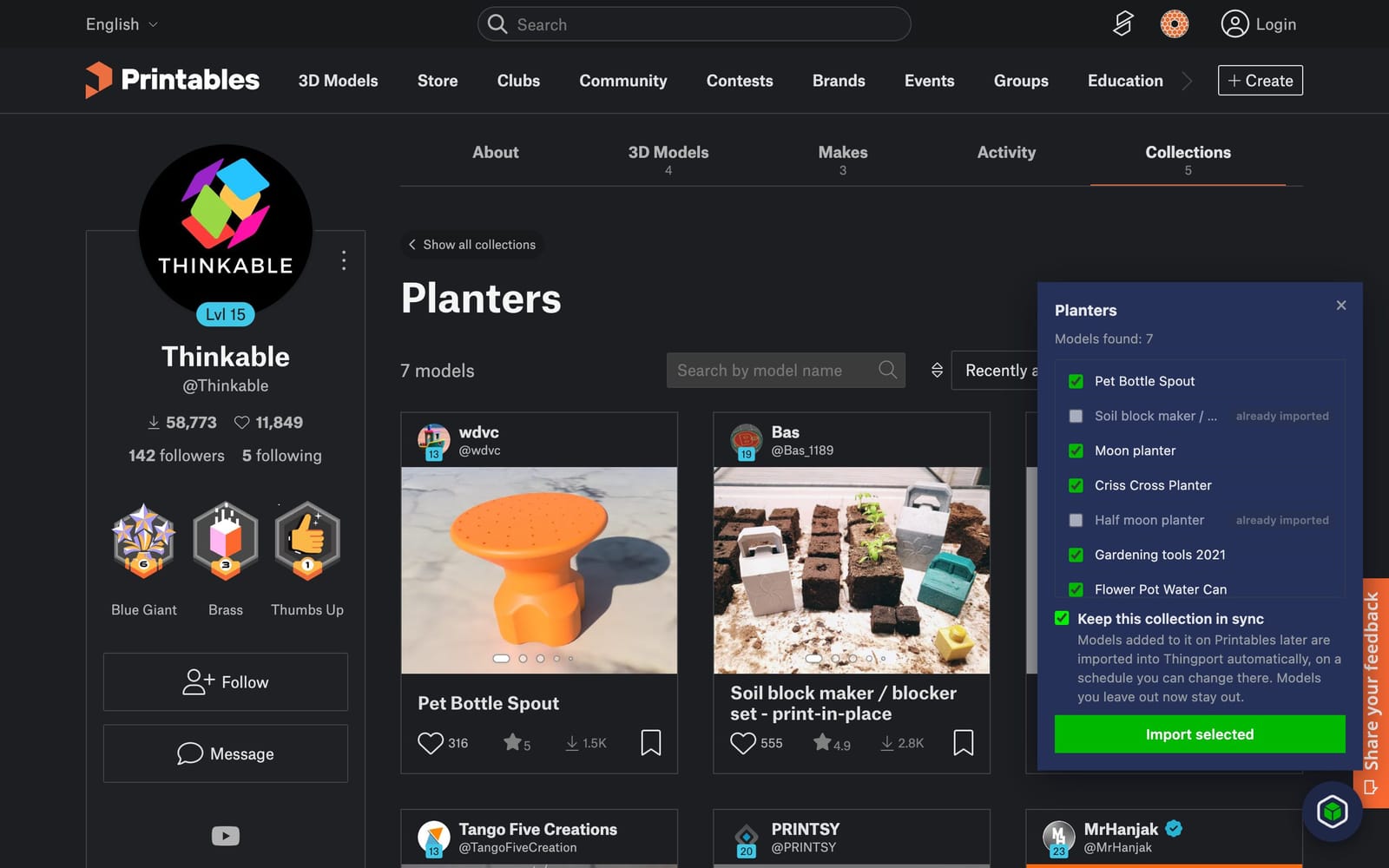
Click the Thingport Grab button in the bottom-right corner. The panel lists the models in it.
-
Tick Keep this collection in sync (Keep these likes in sync on a likes page). It’s off by default.
-
Pick the models to import now and click Import selected (Start import on MakerWorld).
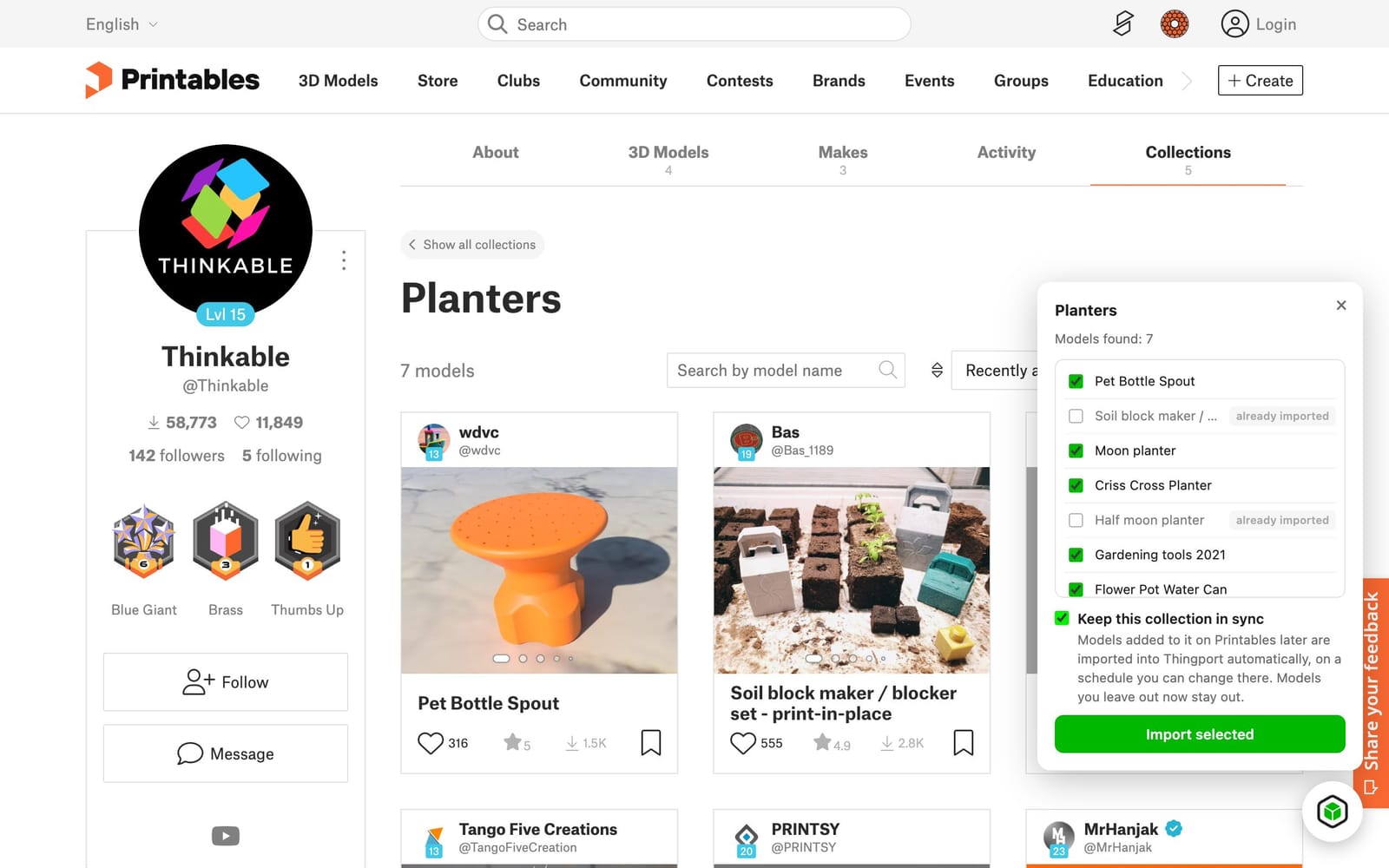
The models already in the collection are imported now, as with any collection import. The ones you leave unticked stay out: sync only picks up models added after you turn it on.
Already imported the collection before? Open its page again, open the panel and tick the box. The panel says everything is already in your library, and Save turns sync on.
Thingport sends a notification once sync is on, naming the collection it follows and its settings.
Find it in Thingport
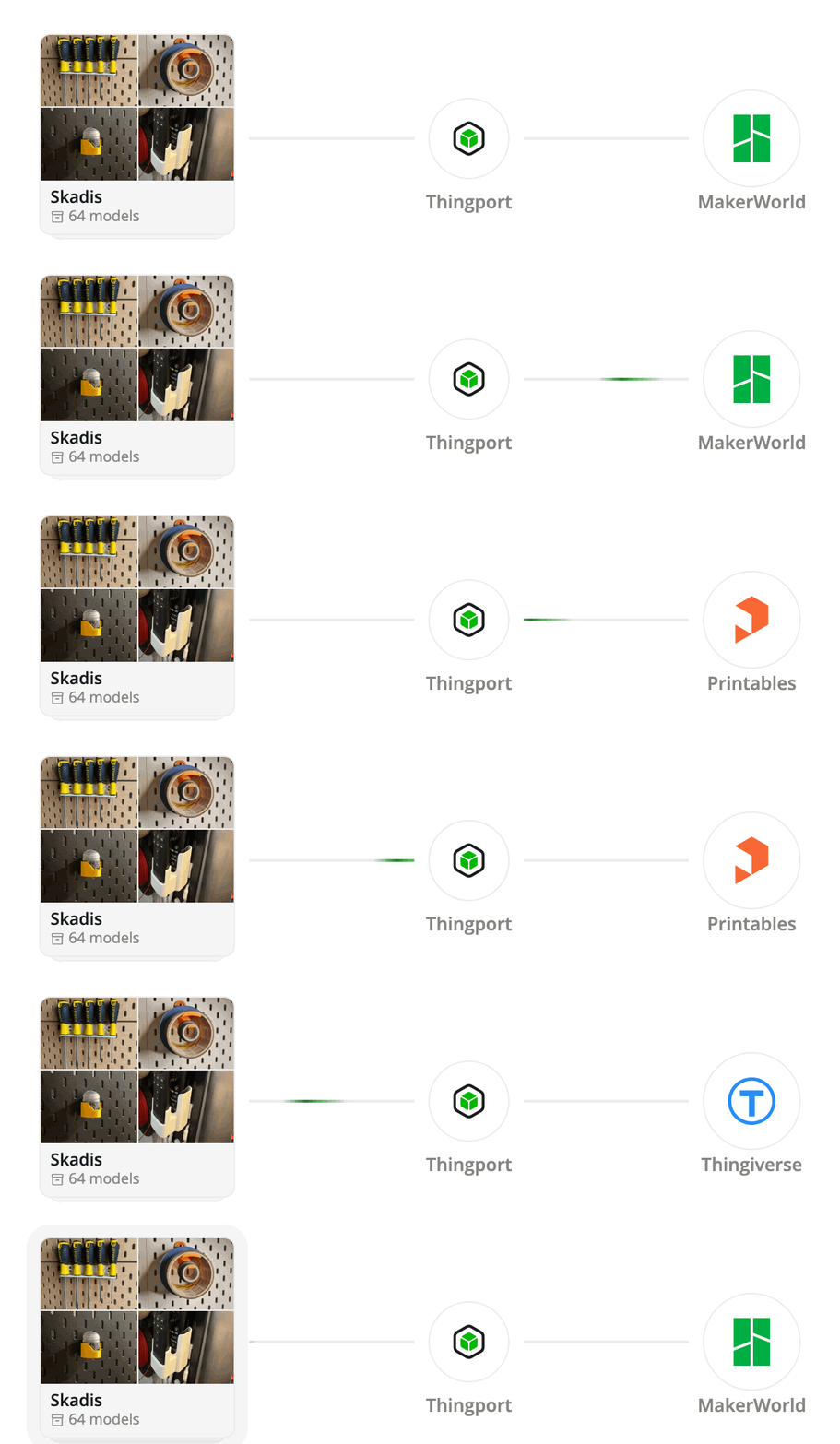
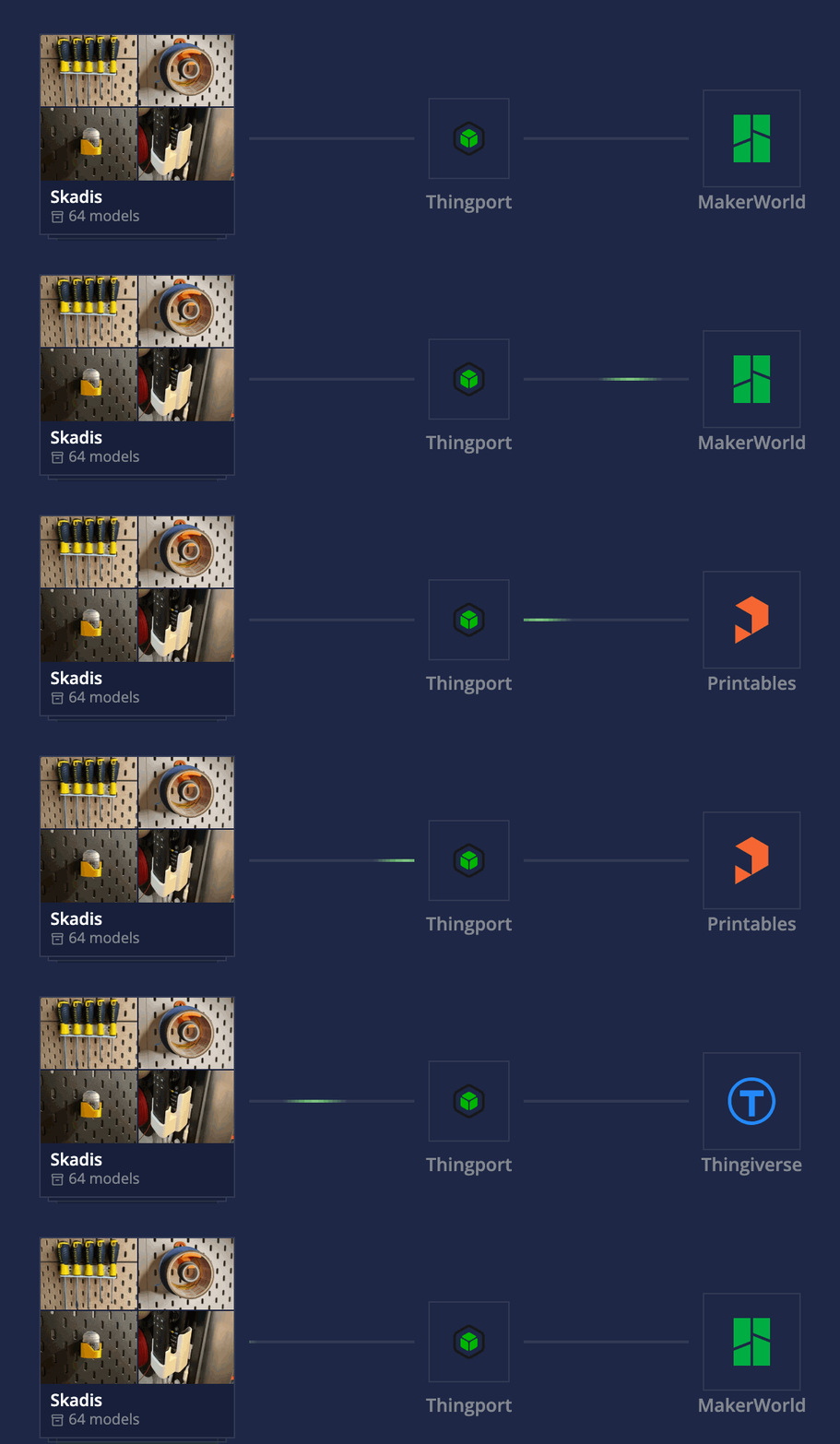
Section titled “Find it in Thingport”A synced collection’s tile on the Collections page shows the provider’s logo with a green tick. With two or three sources their logos overlap; with more, a ring in the sites’ colours shows how many there are. The tick turns into ! when an admin has turned off the site of one of them, and into a red stop sign when all of them are off.
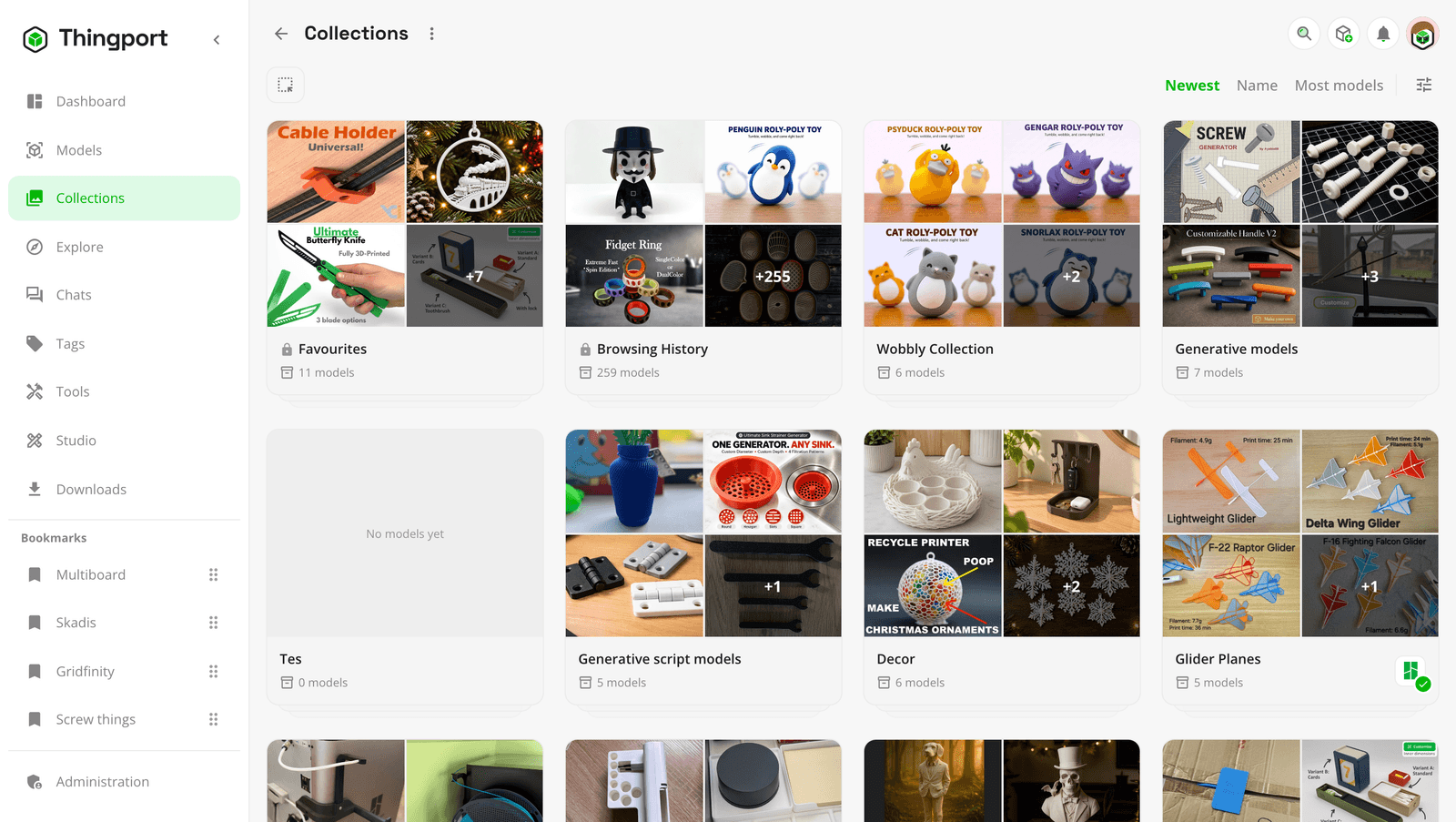
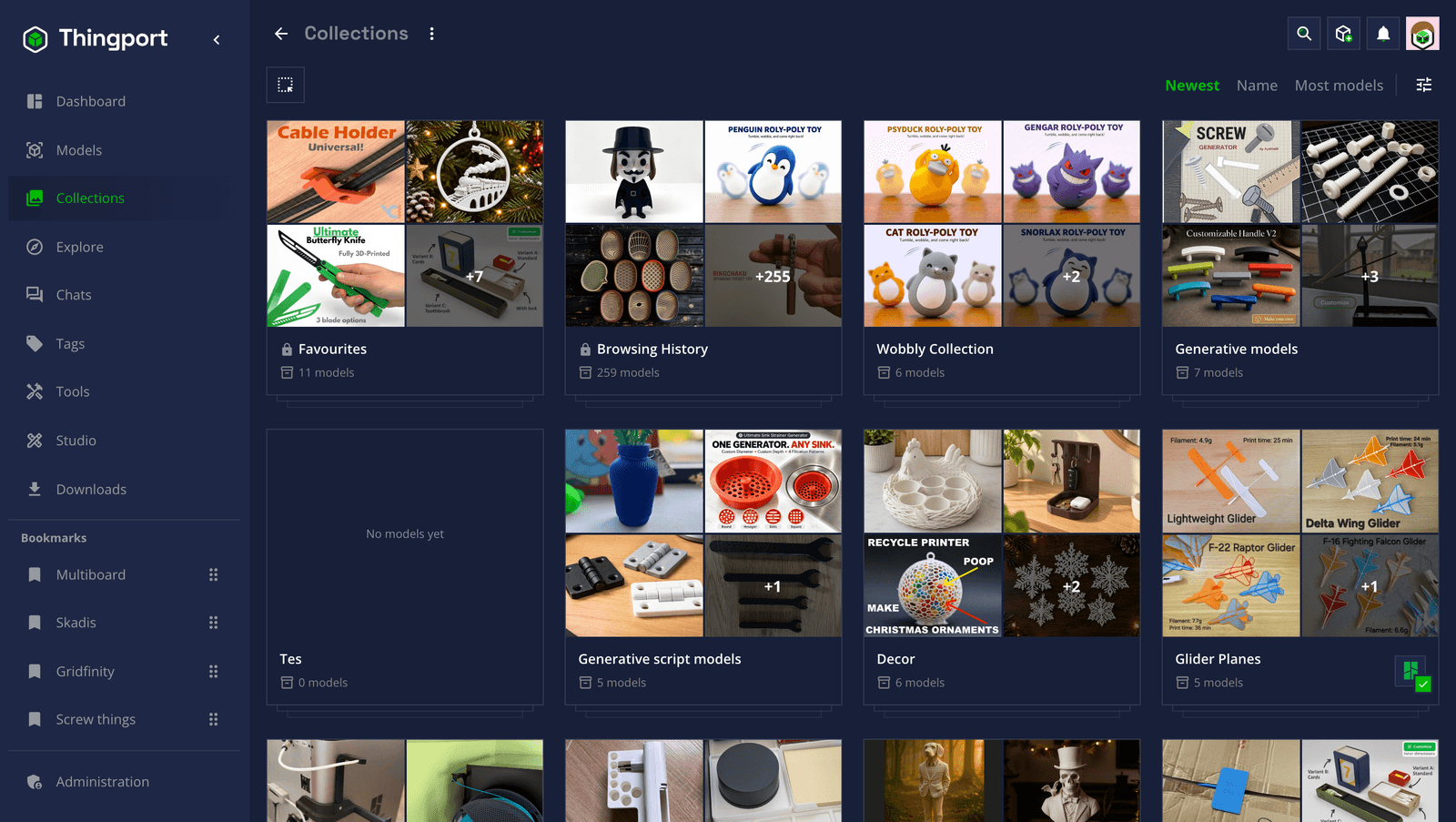
Open the collection and click the same logos above its models, or choose ⋮ → Sync configuration, to see how it’s linked:
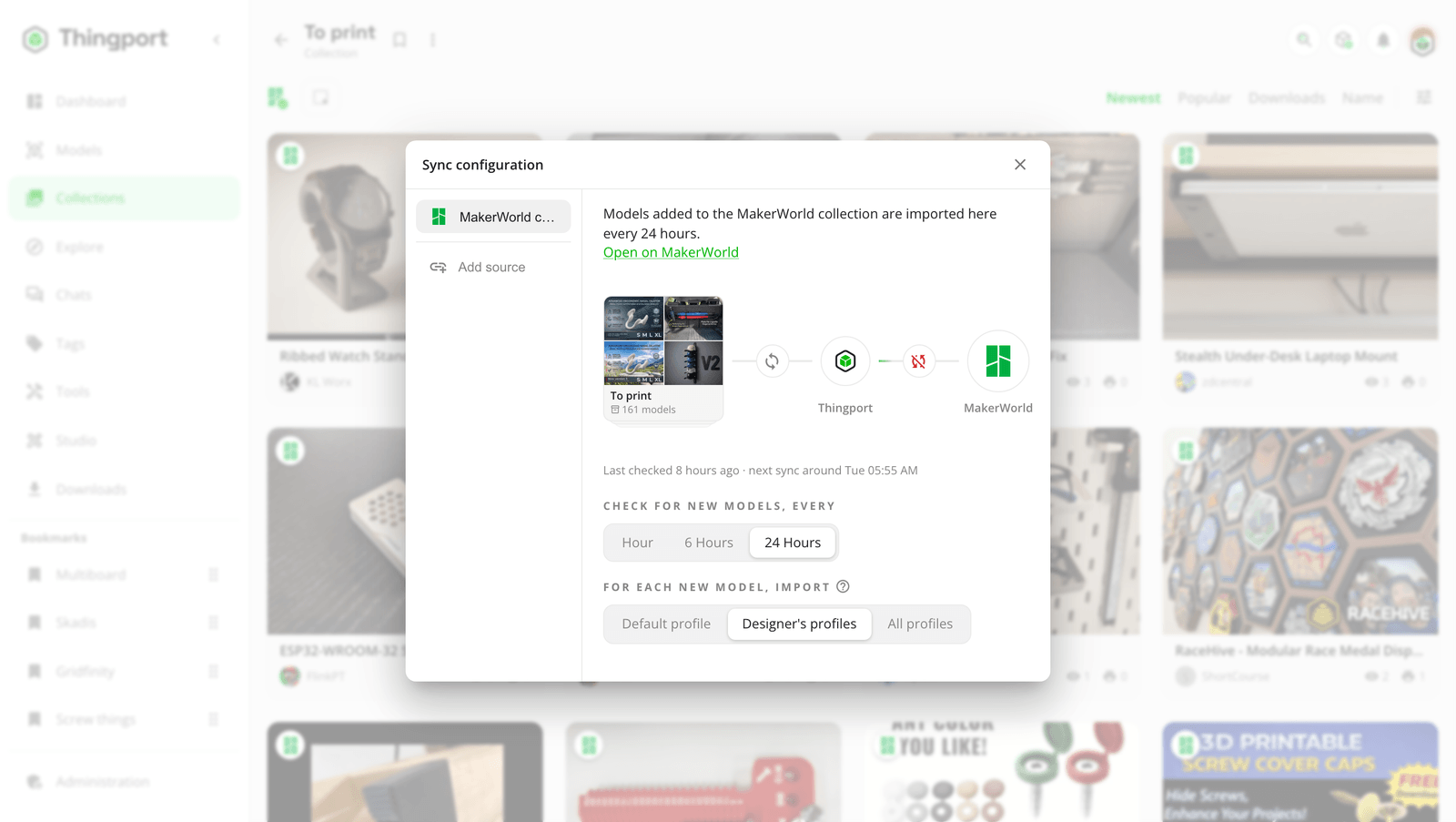
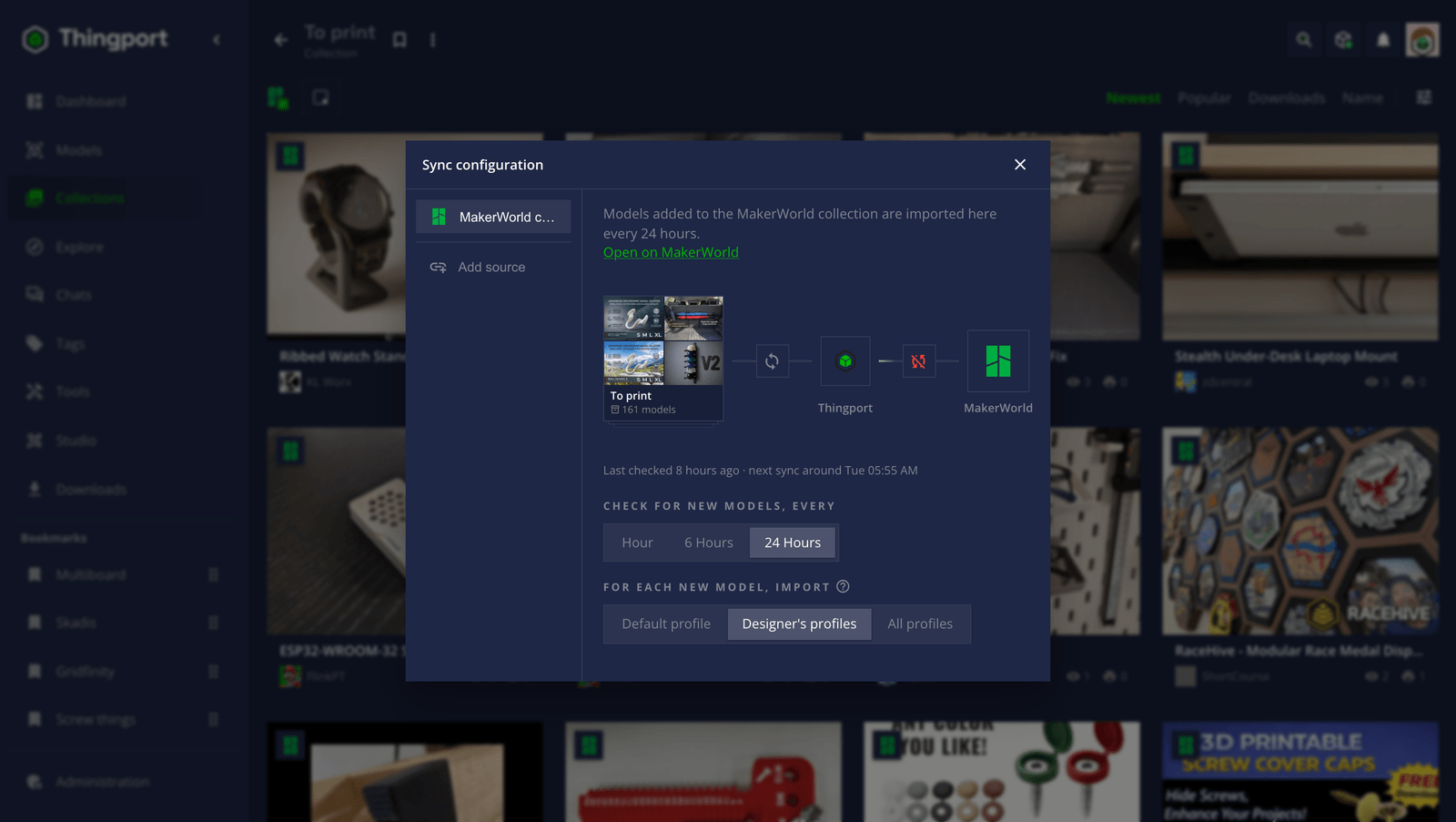
- Each source has a section of its own, named after the provider’s list. It shows the chain from that list to your collection, when it was last checked and when the next check is due, and a link to the list on the provider’s site. Sync now checks it right away; Stop syncing unlinks that source alone. Below that, how often it’s checked: every hour, 6 hours or 24 hours (the default). For MakerWorld, Snapmaker Space, MakerOnline, Creality Cloud, NexPrint, eufyMake and QIDI Maker it also sets which print profiles each new model brings: the default one, the designer’s (the default), or all of them, community ones included. Each source keeps its own settings.
- Overview, once a collection follows two or more, lists them with how each is doing; click one to open it. Sync all now checks every one that can be checked, with a notification for each.
- Add source links another list, as above.
How it works
Section titled “How it works”- On a schedule. Each source is checked on its own interval, once a day unless you change it. A check compares the provider’s collection with the models Thingport has already seen there.
- New models only. A model that’s already in your library is just added to the collection, so one that’s in two of its sources is imported once. The rest are imported one at a time, a minute apart, so the provider isn’t flooded with requests. You get a notification when they’re in.
- A lane of its own. Synced collections don’t wait in the import queue’s line or hold it up: they run beside it. A sync gives way while an import from the same provider is running, since both reach the provider from the same server, and carries on by itself afterwards.
- In your import queue. A running sync is listed under Importing with a SYNC tag. The top bar’s ring and number are only for imports you started. With only a sync going, the icon’s tooltip says a synced collection is updating, and a sync reaches its badge only when it fails or stops.
- Seen once, decided once. A model Thingport has seen in the collection is never brought back by the sync, whether you left it unticked or deleted it from your library later.
- Renames are fine. The link follows the provider’s collection id, so renaming the collection on either side keeps it synced.
- Several into one. A Thingport collection can follow any number of provider collections, from one site or many, but a provider collection syncs with one Thingport collection only. Models you add to the collection yourself stay, whatever its sources do.
- Grab doesn’t merge by name. When Grab turns sync on, a collection with the same name that already follows another source isn’t used: the new one gets its own, such as “Things (MakerWorld)”. To have one collection follow both, add the second source in Thingport with Add source.
- Merging keeps syncing. Merge collections and the one you keep takes over the others’ sources, and the models they had waiting to import.
- Rate limits pause it. If the provider stops the imports, for example with a MakerWorld CAPTCHA or daily download limit, the remaining models wait, on hold, in your import queue until you start them again. They then go back to this lane, not the line.
- Restarts don’t lose it. A sync a server restart cut off carries on by itself. With scheduled checks off (below), it stays on hold until you start it or click Sync now.
- Deleted collections. If the provider’s collection can’t be found on two checks in a row, that source is unlinked and you get a notification. The collection’s models stay, and so do its other sources. Deleting the Thingport collection removes all of its syncs with it.
- Sync now is available again 5 minutes after the last check. Its notification also tells you when there was nothing new. While an import from the same provider is running, it waits for that first.
Turn sync off
Section titled “Turn sync off”Either untick the box in Thingport Grab on the list’s page and save, or use Stop syncing in that source’s section of the collection’s sync configuration. Only that source stops: the collection, its models and its other sources stay in Thingport. You can turn sync on again at any time, in Thingport or from Grab.
For admins
Section titled “For admins”Two optional settings, added to the backend service’s environment in docker-compose.yml:
COLLECTION_SYNC_ENABLED=falseturns off the scheduled checks for every user. Sync now still works, and a sync that someone started again from the import queue, or that gave way to an import, still finishes by itself.COLLECTION_SYNC_ITEM_DELAY_MSsets the pause between the models a sync imports, in milliseconds. The default is60000, one minute.
Checks run one source at a time across all users, since they all reach the providers from the same server. One that has to give way hands its turn to the next, so syncs from other providers carry on.
Turning a provider off under Administration → Providers pauses every collection synced from it, for every user. They pick up again once it’s back on.
Feedback
Section titled “Feedback”Something unclear, wrong or missing on this page? Say so here, or react. It’s kept in GitHub Discussions. Something broken? Report it as a bug.