

Connect other apps with an API token
An API token lets another app, script or dashboard read your Thingport library as you, without your password. Over the REST API it can’t change anything: it only reads. The only way it can change your library is through the MCP tools you turn on for it yourself (see Connect an AI assistant).
Each user has their own token, and it sees what that user sees: their own library and, while an admin has social features on, the collections and models other users made public, under the Collections permission.
Generate a token
Section titled “Generate a token”- Open the user menu (your avatar, top right) and choose Profile.
- Next to API token, click Generate.
- Copy the token straight away. It’s shown only once, and Thingport keeps only a fingerprint of it, so it can’t show it to you again.
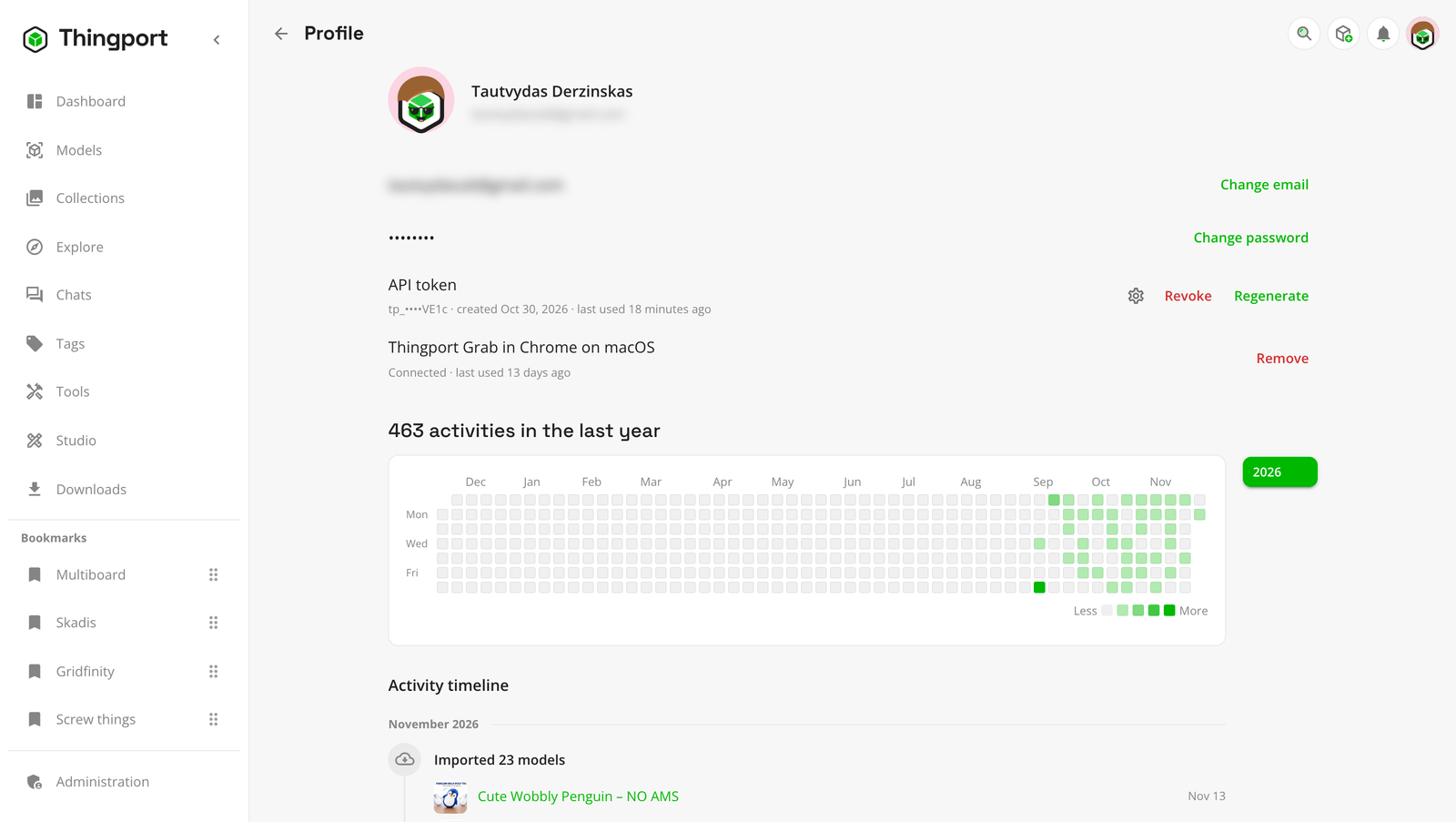
The token starts with tp_. Afterwards your profile shows its last four characters, when it was created and when it
was last used, so you can tell which token is in use and whether anything is still using it.
You have one token at a time. To use Thingport from several apps, give them all the same token.
Use the token
Section titled “Use the token”Send the token in the Authorization header of each request, as a bearer token. The API is at /api on the same
address you open Thingport at:
curl -H "Authorization: Bearer tp_your_token_here" https://thingport.example.com/api/dashboard/summaryThat returns your library stats as JSON: how many models, collections, authors and categories you have, plus your most viewed, most printed and most recently added models. Searching works the same way:
curl -H "Authorization: Bearer tp_your_token_here" "https://thingport.example.com/api/search?q=benchy"The token works only in the header. Putting it in the address as ?token=... is refused, because addresses end up in
browser history and proxy logs.
Choose what the token can read
Section titled “Choose what the token can read”A new token can read everything you can, except your chats: those stay private until you allow Chats yourself. To narrow it, click the cog next to the token to open Token permissions, and under Permissions set each kind of data to Allow or Deny:
| Permission | What it reads |
|---|---|
| Search | /api/search |
| Models | /api/prints, the sites they came from, the files check, /api/print/{id}, its print quality report, print profiles and licence, and /api/licenses |
| Dashboard | /api/dashboard/...: library totals, most viewed, printed and recently added, top authors, the featured model, and the weather, feeds, monitors and trending models its widgets show |
| Activity | /api/activity, /api/activity/feed and /api/me/achievements |
| Collections | /api/collections, /api/collection/{id}, a model’s collections, your bookmarks and Explore (/api/explore, with a user’s page, their public collections and models, the collections shared with you at /api/explore/shared, and partners’ people, models, collections and pictures under /api/explore/elsewhere), and who your collections are shared with (/api/collection/{id}/sharing) |
| Chats | /api/chats, a chat and its messages, the unread count and finding people. Off for a new token |
| Tags | /api/tags, /api/tags/summary and your bookmarked tags |
| Categories | /api/categories |
| Authors | /api/author/{id} and the author profiles linked to you |
| Images | Thumbnails, renders, preview pictures, print profiles’ plate pictures, description images and tag mosaics |
| Model files | Model files and 3D previews (.glb), supporting files, the sliced print, a category as a ZIP, and partners’ models’ files under /api/explore/elsewhere |
| Imports | /api/import/queue, the progress of your imports, and the ones waiting for Thingport Grab |
| Everything else | Any other read: your settings, notifications, AI suggestions and so on |
Changes apply straight away, without a new token. A request the token isn’t allowed is refused with 403 and a
scope field naming the permission it needs. A search widget, for example, needs only Search, plus Images if
it shows thumbnails.
Connect an AI assistant
Section titled “Connect an AI assistant”The same token connects an AI assistant to your library over MCP, with the tools you allow in Token permissions (the cog next to the token). The tools that
read are on for a new token, and so are save_widget, save_tool and upload_icon; the others that change your
library, such as importing a model, stay off until you turn them on. See Connect an AI assistant with MCP.
What a token can and can’t do
Section titled “What a token can and can’t do”- Read: anything you can see in Thingport yourself, such as models, collections, tags, search, the dashboard and your activity, less whatever you deny it under Permissions.
- Not write over the REST API: any request that would add, change or delete something is refused with
403 API tokens are read-only. Only the MCP tools you allow can change your library, and the ones that delete or overwrite models, pictures or files stay off until you turn them on. - Not manage itself: a token can’t be used to generate a new token, revoke one or sign in, so a leaked token can’t be turned into anything more.
- Not reach administration: even an admin’s token can’t open the admin pages or settings, which hold instance secrets such as email and Thingiverse credentials.
Replace or revoke a token
Section titled “Replace or revoke a token”On your Profile:
- Regenerate creates a new token. The old one stops working at once, so update anything that used it.
- Revoke removes the token. Anything using it loses access straight away.
Do either if a token might have leaked. Generating and revoking tokens are recorded in the admin logs.
Treat the token like a password: anyone who has it can read your whole library, and use any MCP tool you turned on.
Feedback
Section titled “Feedback”Something unclear, wrong or missing on this page? Say so here, or react. It’s kept in GitHub Discussions. Something broken? Report it as a bug.