

Import from MakerWorld, Printables, Thingiverse and more
Thingport keeps a real copy of every model you import: its files, photos, title, description, tags, author and a link back to where it came from. If the original page disappears, the model is still in your library.
It imports from 23 sites: MakerWorld, Printables, Thingiverse, MyMiniFactory, Snapmaker Space, MakerOnline, Creality Cloud, NexPrint, Thangs, Cults3D, eufyMake, Pinshape, OwlCAD, Toymakr3D, Makerables, CGTrader, GrabCAD, Meshy, PIXUP, Fab365, 3DExport, QIDI Maker and VoxelShare.
Ways to import
Section titled “Ways to import”- Paste a link. Click Add → Import and paste a model link from any of them, or any direct link to a model file. Paste several links, one per line, and they join the import queue as one import. You can also paste a link straight into the search bar.
- Use Thingport Grab. The browser extension adds a Thingport button to model pages on all 23 sites (MakerWorld, Printables and Thingiverse straight away, the others once you allow them, with a single click in its popup), so you can import without leaving the page, file the model into a collection or a new one, and import whole collections. Pair with Thingport in its popup connects it: you approve the browser in Thingport, and no password is saved in the extension. This is the recommended way to import.
- Or use the bookmarklet. Without the extension, drag the bookmarklet to your bookmarks bar: clicking it on a model’s page opens Thingport with the link already in the import dialog.
- Import a collection or your likes. Paste the link of a collection or another list, and pick which models to bring in. Besides collections, your private ones on PIXUP, 3DExport, QIDI Maker and VoxelShare included, that’s anyone’s likes on Thingiverse, Cults3D, Pinshape and GrabCAD, anyone’s PIXUP wishlist, your own likes on Creality Cloud, Thangs, eufyMake, Toymakr3D, CGTrader, QIDI Maker and VoxelShare, your CGTrader wishlist, your Fab365 favourites, your 3DExport Default Collection and the projects you saved on Makerables. MakerWorld collections, and your Snapmaker Space likes and bookmarks from your profile’s Interactions tab, are imported with Thingport Grab. Providers shows which lists each site has.
- MakerOnline, and OwlCAD’s CAD projects, go through Thingport Grab. MakerOnline hands out its files only to its own pages, and an OwlCAD CAD project has no file until OwlCAD’s own editor builds one. So a MakerOnline link pasted in Thingport, a MakerOnline collection or your likes imported here, a synced MakerOnline collection and an OwlCAD CAD project pasted here all wait for Grab: the next time you open the site in a browser with Grab, it imports them there.
- Keep a collection in sync. A synced collection imports models added to it on the provider later, on its own.
What comes with a model
Section titled “What comes with a model”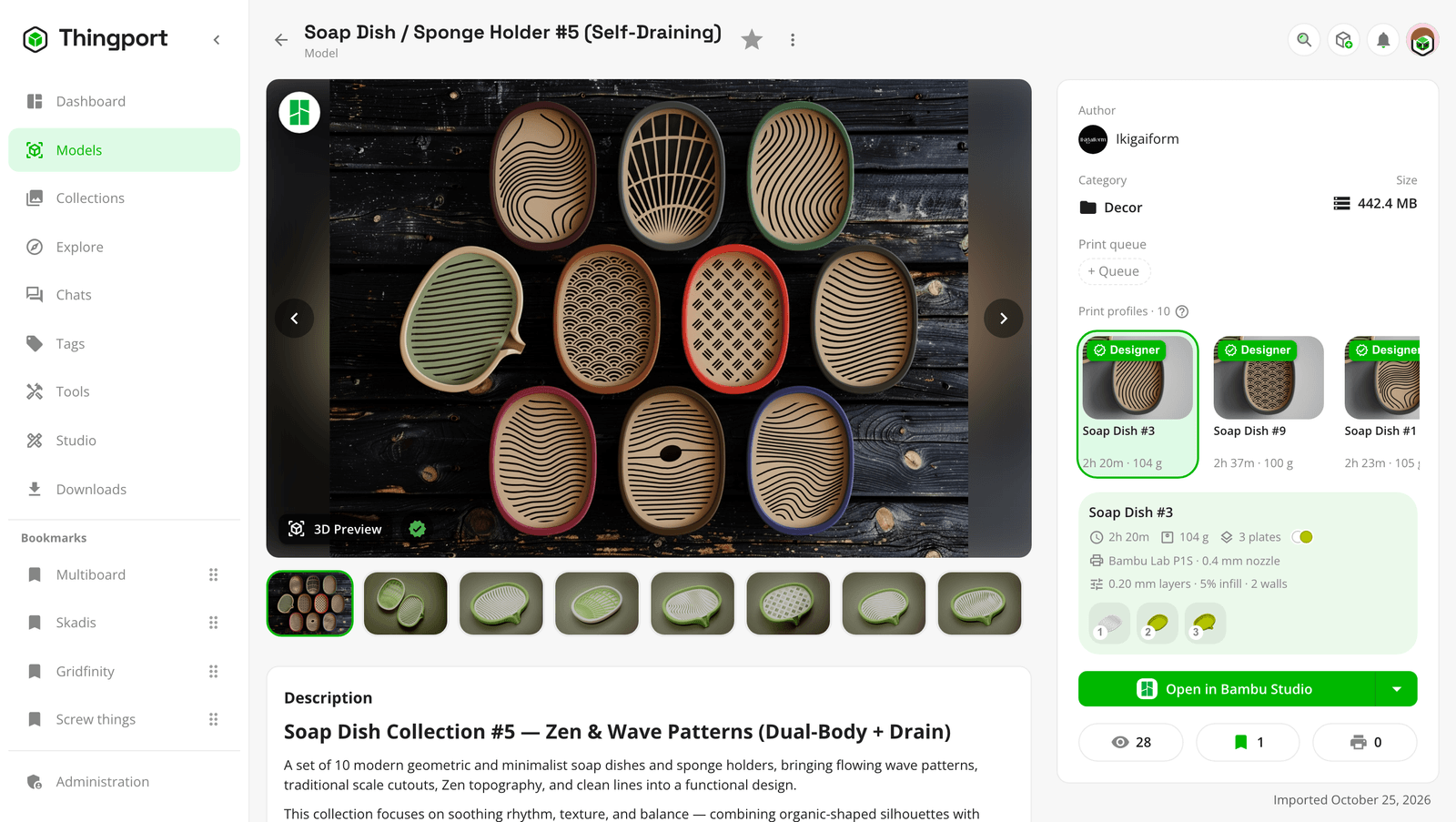
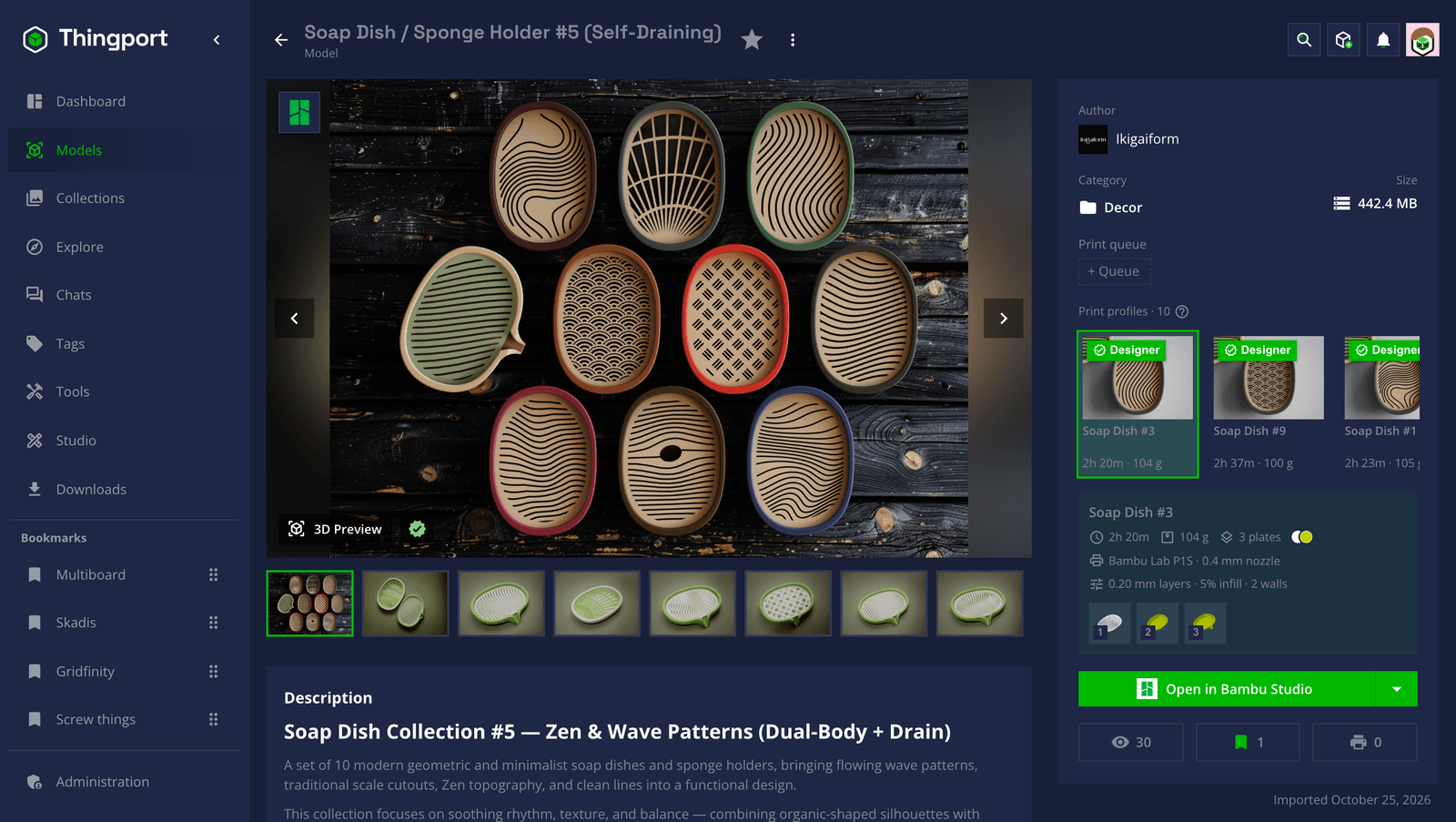
- Its model files, or on MakerWorld, Snapmaker Space, MakerOnline, Creality Cloud, NexPrint, eufyMake, QIDI Maker and VoxelShare its print profiles instead, where it has any: the one the link points to, all of the designer’s, or the community’s too. Each profile becomes its own file on the model. Ones left out, or that failed, can be added later: while the model in your library lacks any of the page’s profiles, Thingport Grab shows its icon there and adds just those. Profiles the model has aren’t downloaded again, though a file from before Thingport kept track of profiles may be, once, to recognise which profile it is. The model page shows them as profiles, above Open: each one’s name, whether the designer or the community made it (the designer’s come first), its print time, filament by colour, plates, printer and settings, from the site and from the profile’s own 3MF. The 3D preview shows the picked profile’s plates. A model imported before Thingport kept these reads them the first time you open it. How they’re shown, or whether to show them as plain files instead, is in Appearance.
- The folders its files are in, where the designer sorted them into some: the folders on Printables and GrabCAD, PIXUP’s file groups, MyMiniFactory’s archives, Makerables’ uploaded zips (each a folder named after it), the folders inside any zip a site hands over (Cults3D’s, for one), or a model copied from a connected instance. They are often its variants (sizes, supported or not), so the model page lists the files under a heading for each folder, and a folder that every file is in, such as one named after the model, is left out. Files in different folders may share a name.
- The OpenSCAD script it was generated from, where its creator shared one, whichever site it came from, so it can be customised and generated again. MakerWorld also says when a creator kept the script back, and the model is marked Script not shared. On a MakerWorld page, Thingport Grab says before you import whether the script comes along.
- The photo gallery, the formatted description, tags and, where the site gives one, its category, which Thingport maps to your own categories.
- The author, where the site names one, with their avatar and profile, linked to an author page.
- Its licence, as the site lists it, with any terms the site or creator added.
If a detail couldn’t be fetched at the time, such as the author, Fetch missing details on the model page tries again.
Link a model you already have
Section titled “Link a model you already have”A model you uploaded yourself can be linked to its page on any of the 23 sites, without importing it again. Choose Link to a provider in the model page’s ⋮ menu, or on the Models page with the Folders view on, in a card’s ⋮ menu or, with exactly one model selected, the selection toolbar. Paste the model’s link, check the preview, and link it.
- What it brings: the page’s pictures, description, tags, author and licence, and the provider’s badge and link. The pictures go ahead of your own, so its cover becomes the model’s, and your own stay. Tags are added to yours. The description and author replace what’s there, where the site has them, and that can’t be undone. A title you set stays.
- What it leaves alone: your files. Nothing is downloaded, so the page’s other files and print profiles don’t come.
- Category: the model stays where it is. If the site’s category maps to one of yours, it’s suggested on the model page, to accept or reject like an AI suggestion, and works without AI. An AI run replaces it with its own answer, or clears it if nothing fits.
A linked model counts as imported from then on, so importing the same link later won’t bring the page’s files. On sites with print profiles, importing a link to one of its profiles still adds that profile. A page can only be linked to one model.
The import queue
Section titled “The import queue”Imports run one at a time for the whole server, in the order they were added. Whatever you add in Thingport joins this line: the Add dialog closes straight away and tells you your place, and a notification says what came in when it’s done. A model you already have is never imported twice, so importing the same collection again only brings in what’s new.
Everyone has their own queue, under Add in the top bar, which opens onto your imports at a glance: how many are in each section below, what’s running or needs you, and Open for the queue itself. Add also shows imports you started: a ring while one runs, your place while one waits, with the details in its tooltip, a tick when they’ve finished, and a badge when one needs attention or all that’s left is on hold. Other people’s imports never move it, and your synced collections only reach it through that badge. Import at the top of the queue starts another without leaving it.
- Importing is what’s running. Pause stops a list of links after the link it’s on. Anything else that’s running goes on to its end.
- Needs attention is what failed or was cut off, with the reason. A MakerWorld import its CAPTCHA stopped reads Waiting for puzzle instead, if you have Thingport Grab paired: a banner over the queue sends you to MakerWorld with Solve on MakerWorld, where Grab offers to open MakerWorld’s puzzle and then finishes the imports. Retry still works once the CAPTCHA clears.
- Waiting is what’s In line, which starts by itself, and what’s On hold, which doesn’t until you start it. Hold takes an import out of the line.
- Finished keeps what’s done until you clear it.
Start and Retry put an import at the back of the line, so nobody’s number ever goes up. Each section also has a button for all of its imports at once.
Other people’s imports show in your line as Private import rows, which say nothing about whose or what they are. Admins can switch the dialog from Mine to Everyone to see everyone’s imports by person and act on them.
What’s outside the line
Section titled “What’s outside the line”Add to the queue in Thingport Grab sends a link to your queue, where it stays on hold until you start it. To have those links go straight into the line, turn on Start links from Grab automatically under the dialog’s cog. It’s your own setting, and links already on hold stay there.
Grab’s Import button and MCP imports start at once, beside the line: they don’t wait for it, and it doesn’t wait for them. A single model brought in that way isn’t listed in the queue. Longer ones from Grab, such as a collection on most sites, show under Importing, and can’t start while one of your imports is running, a synced collection included. API clients start at once too, unless they ask for the line.
Synced collections run in a lane of their own, beside the line too.
What can be retried
Section titled “What can be retried”Fix the cause first, such as a sign-in. What Retry does then depends on the import:
| Import | Retry |
|---|---|
| A link or a list of links | Runs the links that failed, and any it never reached. |
| A collection, likes, print profiles | Runs the whole request again, skipping what’s already in your library. |
| A ZIP | Isn’t offered: nothing records which files came in. Delete it and start a new import with the rest. |
A collection or print profiles started with Grab’s Import button, or before Thingport had this queue, saved no request, so it can’t be retried either. Import it again instead: what you already have is skipped.
After a restart
Section titled “After a restart”Imports in line keep their place, and imports on hold stay on hold. What was running when the server stopped:
- A link or a list of links: the link it was on is marked failed, as its model may be incomplete in your library, and the rest carry on from the same place in the line. Delete that model before retrying the link.
- A collection, likes, a ZIP or print profiles: it goes to Needs attention, as some of it may already be in your library. Check before retrying.
- A synced collection: it carries on by itself.
- Anything started outside the line: it isn’t picked up again.
An import that shows no activity for an hour also stops with an error, so the line moves on. If Retry isn’t offered on it, restart the server.
For admins
Section titled “For admins”-
IMPORT_STALL_LIMIT_MINUTES, added to thebackendservice’senvironmentindocker-compose.yml, sets how long an import may show no activity before that happens. The default is60. -
Switching the database under Administration → Connections is refused while anything is importing, in the line or outside it. Pause it or let it finish, then try again.
-
Going back to an older version: imports in line never run there, and its import queue page can fail to load while there are any. Before you pin the older image, run this on the database, and they show there as paused:
UPDATE "ImportJob" SET "status" = 'PAUSED' WHERE "status" = 'QUEUED'; -
Keep the frontend and backend images on the same version. An older frontend has no queue for members to open, so a link they send with Grab’s Add to the queue stays on hold, and only an admin on the old page can start it.
Before you start
Section titled “Before you start”MakerWorld needs your session cookie and Thingiverse an App Token set by an admin, while Printables, eufyMake, OwlCAD, Makerables, QIDI Maker and VoxelShare work with no setup. The other sites each need a key or your own sign-in, which Thingport Grab mostly hands over for you. MakerOnline’s files come only through Grab, and CGTrader’s downloads also need Grab or FlareSolverr to get past its bot check. Providers compares what each one needs, with a setup page per site. Admins can also turn a provider off for the whole instance, and then nothing is imported from it.
Imported models can be categorized and their descriptions cleaned up on the way in with the optional AI features.
Feedback
Section titled “Feedback”Something unclear, wrong or missing on this page? Say so here, or react. It’s kept in GitHub Discussions. Something broken? Report it as a bug.